


€489,00

 Skip to content
No results found. Try a different keyword.
Find everything you need to set up your glasses, explore features, and get the most out of your RayNeo GT Series experience.
Can't find the answer you're looking for? Our support team is here to help. Contact us at: service@rayneo.com
Step into next-gen immersive viewing — RayNeo GT AR Glasses deliver up to a 201-inch cinema display experience with native 3DoF spatial tracking, designed to transform how you watch, game, and work. Powered by an advanced Dual-Chip Architecture featuring the Vision 4000 Display Chip and Zone 360 3DoF Chip, RayNeo GT brings stable hardware-level spatial display and plug-and-play screen mirroring into a sleek, 68g lightweight form factor.
Featuring Dolby Vision playback support (when paired with RayNeo Pocket TV Pro) and Racetrack Audio by Bang & Olufsen, RayNeo GT is your ultimate portable screen for mobile gaming, handheld consoles, and cinema-grade movie viewing on the go.
Elevate your spatial vision — RayNeo GT Max AR Glasses elevate the GT foundation with an expanded 59° Field of View (FOV) and up to a massive 267-inch cinema screen experience. Engineered for power users, remote workers, and hard-core gamers, RayNeo GT Max combines high-immersion visuals with native 3DoF tracking powered by its dedicated Dual-Chip Architecture (Vision 4000 Display Chip & Zone 360 3DoF Chip).
RayNeo GT Max introduces a dedicated 3-size IPD (Interpupillary Distance) hardware optical alignment system (S, M, L) within its 78g streamlined frame, ensuring that every user gets customized interpupillary fitting to eliminate edge blur and eye fatigue across the entire display.
What is IPD? IPD (Interpupillary Distance) is the distance between the centers of your pupils. Selecting the right IPD size helps ensure a clear, comfortable viewing experience and minimizes visual distortion.
How to Measure Your IPD
Before selecting your glasses size, please measure your IPD using our dedicated measurement tool:
Measure Your IPD — http://ipd.rayneo.com/
Available Sizes:
For the best optical clarity and viewing experience, we recommend measuring your IPD before placing your order.
RayNeo AR glasses work as a portable external display, giving you a private, large-screen viewing experience wherever you go.
The glasses do not require a built-in battery or power button. Simply connect them to a compatible device using the included cable. Your connected device powers the glasses and sends video signals to the display, so you can start using them right away.
With your RayNeo AR glasses, you can:
You can use your RayNeo AR glasses as an external display without installing any app. However, the RayNeo XR App provides additional app-based features and settings for RayNeo GT / GT Max. For setup instructions, compatibility requirements, and feature details, see Section 5: RayNeo XR App.
Whether you prefer a simple plug-and-play experience or want to explore more advanced features, you can choose the experience that works best for you.
On the RayNeo GT series, glasses feature the same onboard control layout with three physical buttons, including: Volume Button, Spatial mode Button and Menu Button.

| Control | Button | Description |
|---|---|---|
| Adjust the Volume | Volume Button | Press + or − to increase or decrease the volume. |
| Switch Audio Modes | Volume Button | Press and hold the Volume Rocker to switch between Standard, Whisper, and Spatial Surround audio modes. |
| Open and Navigate the Menu | Menu Button + Volume Button | Press the Menu Button to open the menu. Use the Volume Button to move between options and press the Menu Button to confirm. |
| Switch Spatial Viewing Modes | Spatial Mode Button | Short-press to switch between Steady, Pinned, and Follow modes. |
| Recenter the Spatial Display | Spatial Mode Button | While in Pinned Mode, press and hold the Spatial Mode Button to recenter the virtual screen in front of you. |
| Switch Between 2D and 3D | Volume Button + Spatial Mode Button | Press both controls simultaneously to switch between 2D and 3D display modes. |

RayNeo GT and GT Max include interchangeable nose pad options for different nose bridge shapes and wearing preferences.
RayNeo GT and GT Max do not support temple-arm width adjustment. The distance between the left and right temple arms is fixed and cannot be manually adjusted. In contrast, previous-generation RayNeo models support three-level temple-arm width adjustment to accommodate different head widths.
Do not attempt to widen, narrow, twist, or bend the temple arms by force.

For nearsighted users, choose one of the following options to get your lenses:

RayNeo GT and GT Max do not have built-in batteries and do not require charging. The USB-C port receives power, video, and audio from the connected source device.
RayNeo GT and GT Max can connect directly to devices that support DisplayPort over USB-C. Devices with HDMI or Lightning output require compatible adapters.

For the latest list of compatible devices (partial list, not all supported devices), please refer to the link below:
| Source Device | Power Supply Method | Connection Requirement | Additional Accessory | Image of Accessory |
|---|---|---|---|---|
| USB-C device with DisplayPort output | Powered by the source device | Direct USB-C connection | None | — |
| Charge the source device while using the glasses (USB-C PD) | DisplayPort over USB-C | RayNeo USB-C Charging Adapter | 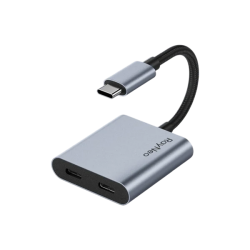 |
|
| Device with HDMI output | Powered by the source device | HDMI-to-USB-C video conversion | RayNeo HDMI to Glasses and Charging Adapter | 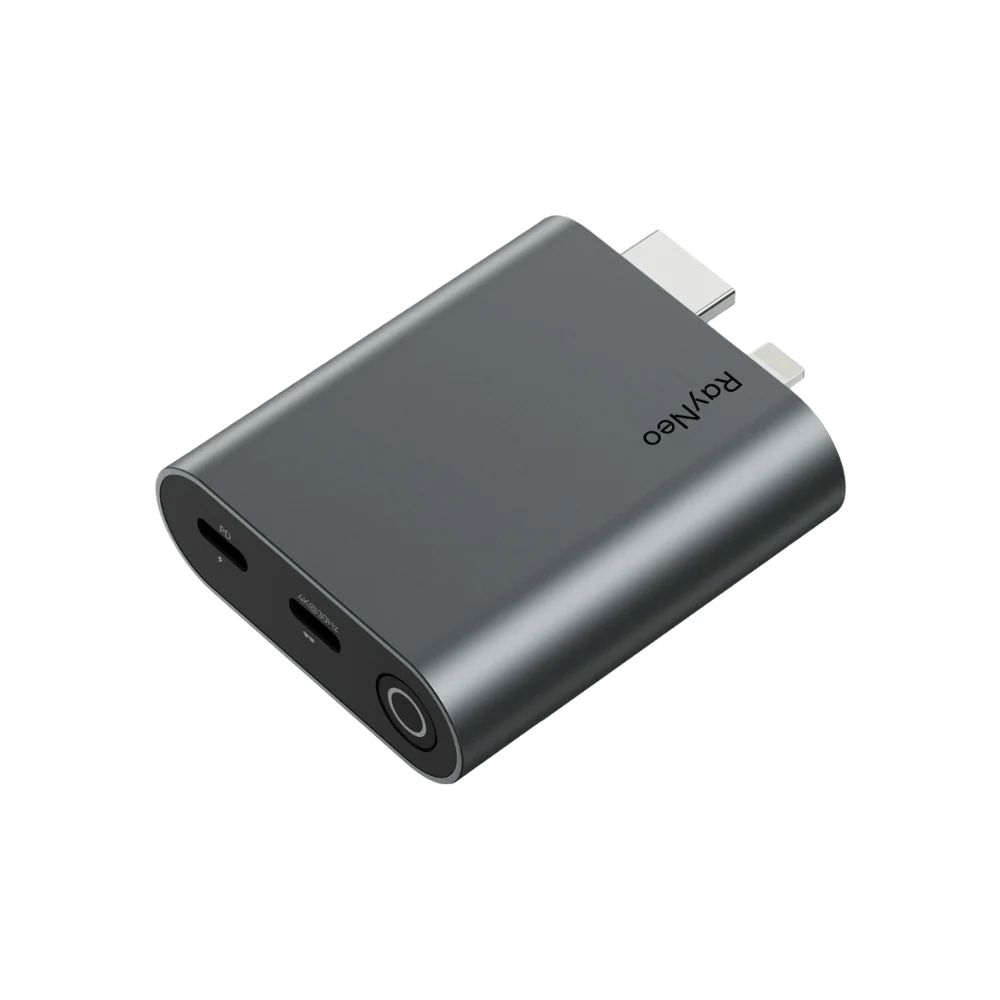 |
| Device with a Lightning port | Powered by the source device | Lightning-to-HDMI and HDMI-to-USB-C conversion | RayNeo HDMI to Glasses and Charging Adapter | |
Devices that support DisplayPort over USB-C, DP Alt Mode, or compatible Thunderbolt video output can connect directly to RayNeo GT and GT Max.
Representative Devices: iPhone 15 Pro and Steam Deck. Other compatible smartphones, tablets, laptops, and handheld gaming devices may also be supported.
What You Need: The USB-C cable included with the glasses.
Connection Path: Compatible USB-C device → Included USB-C cable → RayNeo GT or GT Max

Devices with an HDMI output can connect to RayNeo GT / GT Max using the RayNeo HDMI to Glasses and Charging Adapter.
Representative devices: PlayStation 5, Xbox Series X|S, and computers with an HDMI output.
Refer to the numbered connection diagram:
Connection Path: HDMI device → RayNeo HDMI to Glasses and Charging Adapter → Included USB-C cable → RayNeo GT / GT Max

Phones and iPads with a Lightning port can connect to RayNeo GT / GT Max for screen mirroring using an Apple Lightning adapter and a RayNeo HDMI adapter.
Representative devices: iPhone 14 Pro and iPad (9th generation).
What You Need: An Apple Lightning Digital AV Adapter, a RayNeo HDMI to Glasses and Charging Adapter, and the USB-C cable included with RayNeo GT / GT Max.
Connection Path: Lightning device → Apple Lightning Digital AV Adapter → RayNeo HDMI to Glasses and Charging Adapter → Included USB-C cable → RayNeo GT / GT Max

The RayNeo XR App expands the media experience available on RayNeo GT / GT Max. However, the app is not required for basic display use. When connected to a compatible device via USB-C with DisplayPort Alt Mode—or to an HDMI source through a compatible adapter—the glasses function as a plug-and-play external display for screen mirroring or extended display, depending on the source device.
Installing the RayNeo XR App provides access to additional features, including AI-powered 2D-to-3D conversion, immersive 3D playback, spatial photo and video viewing, and media management. Feature availability may vary depending on the connected device, operating system, app version, and glasses firmware.
Installing the app may unlock the following features:
Scan the QR code below to download the app from the App Store.
Requirements: iPhone 15 series or later with USB-C and iOS 17.2 or later.
Link: https://rayneo.cn/download/mercury/

Scan the QR code below to download and install the Android app. If prompted, allow installation from the selected download source.
Requirements: Android 8.0 or later and a USB-C port that supports DisplayPort Alt Mode.
Link: https://rayneo.cn/download/mercury/

RayNeo GT / GT Max supports playback of compatible SBS 3D videos through the RayNeo XR App on a compatible phone. This feature is intended for videos that are already encoded in SBS 3D format and is separate from AI 2D-to-3D conversion.
An SBS 3D video contains separate left-eye and right-eye images arranged side by side within a single video frame. When SBS 3D mode is enabled, the glasses display the corresponding image to each eye, creating a stereoscopic 3D effect.
The glasses also support SBS 3D playback — you can enable 3D mode in the glasses settings and watch SBS 3D video sources directly. However, the App delivers noticeably better 3D effect by supporting multiple 3D formats (side-by-side, top-bottom, and more), offering greater depth and a stronger stereoscopic effect than the glasses-only 3D mode.


AI 2D-to-3D adds stereoscopic depth to standard 2D photos and videos, allowing them to be viewed with a 3D effect through RayNeo GT / GT Max.
The activation method differs between photos and videos:
How to Use It in the RayNeo XR App
Requirements and Limitations
To use AI 2D-to-3D on videos, all the following requirements must be met.
App Requirement
Connection Requirement
Supported Devices
Supported Video Formats
AI 2D-to-3D supports standard video files in the following formats:
Unsupported Content
How to Use It in the RayNeo XR App

The RayNeo XR App allows you to view spatial photos and videos captured on a compatible iPhone through RayNeo GT / GT Max.
Spatial media contains depth information captured by the iPhone. When viewed through the glasses, it provides a stereoscopic viewing experience with a greater sense of depth. Unlike standard 2D media, compatible spatial photos and videos do not require AI 2D-to-3D conversion.
The following iPhone models support spatial video capture:


Enhance your RayNeo GT / GT Max experience with the following optional accessories. Accessories are sold separately, and availability may vary by region.
Compatible with: RayNeo GT / GT Max
Connect Pocket TV Pro to your glasses for a portable, all-in-one streaming experience without relying on a compatible smartphone. It supports Netflix streaming and completes the Dolby Vision playback chain for compatible content, delivering richer colors, enhanced contrast, and greater picture detail.

Purchase: Buy RayNeo Pocket TV Pro
Compatible with: RayNeo GT / GT Max
This universal accessory is designed to fit different ear shapes. Its sound-guiding technology directs audio toward your ears and provides a dynamic boost of up to 15 dB for fuller bass, clearer sound, and reduced audio leakage.

Purchase: Buy RayNeo Sound Tube
Compatible with: RayNeo GT only
Blocks ambient light and reduces reflections, helping improve perceived contrast and visibility for a more immersive viewing experience in bright environments.

Purchase: Buy RayNeo Lens Shade for GT
Compatible with: RayNeo GT Max only
Fits the GT Max optical module to block ambient light and create a darker viewing environment, improving perceived contrast and immersion when watching content in bright surroundings.

Purchase: Buy RayNeo Lens Shade for GT Max
If the issue persists, contact RayNeo Support with the glasses model, connected-device model, and connection method.
RayNeo GT Max provides S, M, and L optical-module options for different interpupillary distances (IPD), as well as S, M, and L nose-pad heights for different pupil heights.
If the IPD size is correct but the edges are still blurry:
If one side remains blurry or a fully clear image cannot be achieved, contact RayNeo Support and provide the selected IPD size, nose-pad size, and whether the issue affects one or both eyes.
RayNeo GT / GT Max use an open-ear speaker design. The speaker outlets direct sound toward the wearer, making the audio difficult to hear clearly from approximately 1.5 meters away. However, someone standing very close may still hear some sound.
Adjusting the volume
Use the Volume Rocker on the glasses to increase or decrease the volume.
Switching audio modes
Press and hold the Volume Rocker to switch between:
Select Whisper Mode to reduce audio leakage in quiet or public environments. It can also be enabled through RayNeo XR App > Glasses Settings > Whisper Mode.
The connected device powers the glasses and processes video, so slight warmth and increased battery consumption are normal. Use the appropriate power-saving feature for your viewing mode.
When Playing Videos in XR Space: Eco Mode

When Using Screen Casting: Auto-Dim Brightness
After 10 seconds of inactivity, a dark overlay will appear to reduce the phone screen's power consumption. Casting will continue normally.
Tap Temporarily Brighten Screen to remove the overlay. It will return after another 10 seconds of inactivity.

You can also lower the glasses' brightness, close unused apps, keep the connected device well ventilated, and disconnect the glasses when they are not in use.
The following instructions update the firmware installed on the glasses. They do not update your phone's operating system or the RayNeo XR App.
When new glasses firmware is available, the RayNeo XR App will normally display an update notification automatically. Tap Update Now to begin or Update Later to postpone it.
To check for updates manually:
This includes iPhone users and others who cannot update through the Android app. Use a Windows PC or Mac:
If you cannot find an answer in the FAQ or the issue persists, contact RayNeo Support.
Email: service@rayneo.com
Please include:


