Adattatore
Domande frequenti
Prima di usare l'adattatore portatile per la prima volta, caricalo
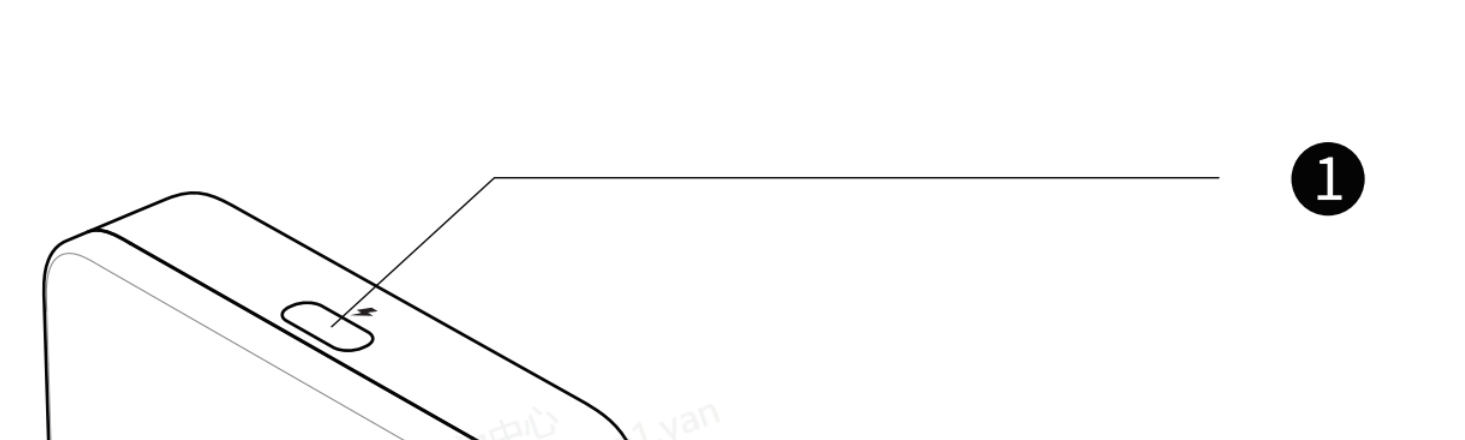
- Usa il cavo lungo da USB-C a USB-C incluso nella confezione, collega la porta USB-C contrassegnata con il simbolo del “fulmine” sulla parte superiore dell'adattatore portatile per la ricarica e collega l'altra estremità al caricabatterie
- - Don’t mix the type C port for Smart glasses with the one for Charging. The port for Smart Glasses is marked with a “glasses” at the bottom
-
At the very beginning of charging, the indicator light doesn’t blink due to lack of power.
- - After charging for a while, it will blink;
- - Or after charging a while, you press the thumbwheel, it will blink.

- Per gli utenti Android, è necessario scansionare il codice QR nel manuale per scaricare e installare l’APP “Mirroring” (oppure scaricarla da Google Play);
- For iPhone users, you can cast the screen without the APP .
- However, if you’d like to upgrade the portable adapter’s firmware, the APP is necessary(scan the QR code or search on App store).
- Take Android as an example, scan the QR code in the manual
- Click Download and install the APP
- Open the APP. It might ask for the permit to Dipaly over other apps( It might vary from one phone model to another)
- Find the Mirroring and grant the permit

Per utenti iPhone
- *Completa i passaggi per la connessione seguendo il manuale nella confezione
- Quando sull’iPhone viene visualizzata la finestra di avviso, tocca Autorizza; e gli occhiali smart potranno trasmettere lo schermo dell’iPhone. 👍
For Android User
- *Complete the connection steps according to the manual in the box
- Open the Mirroring APP, below window prompts up, choose "Transfer files/Android Auto"
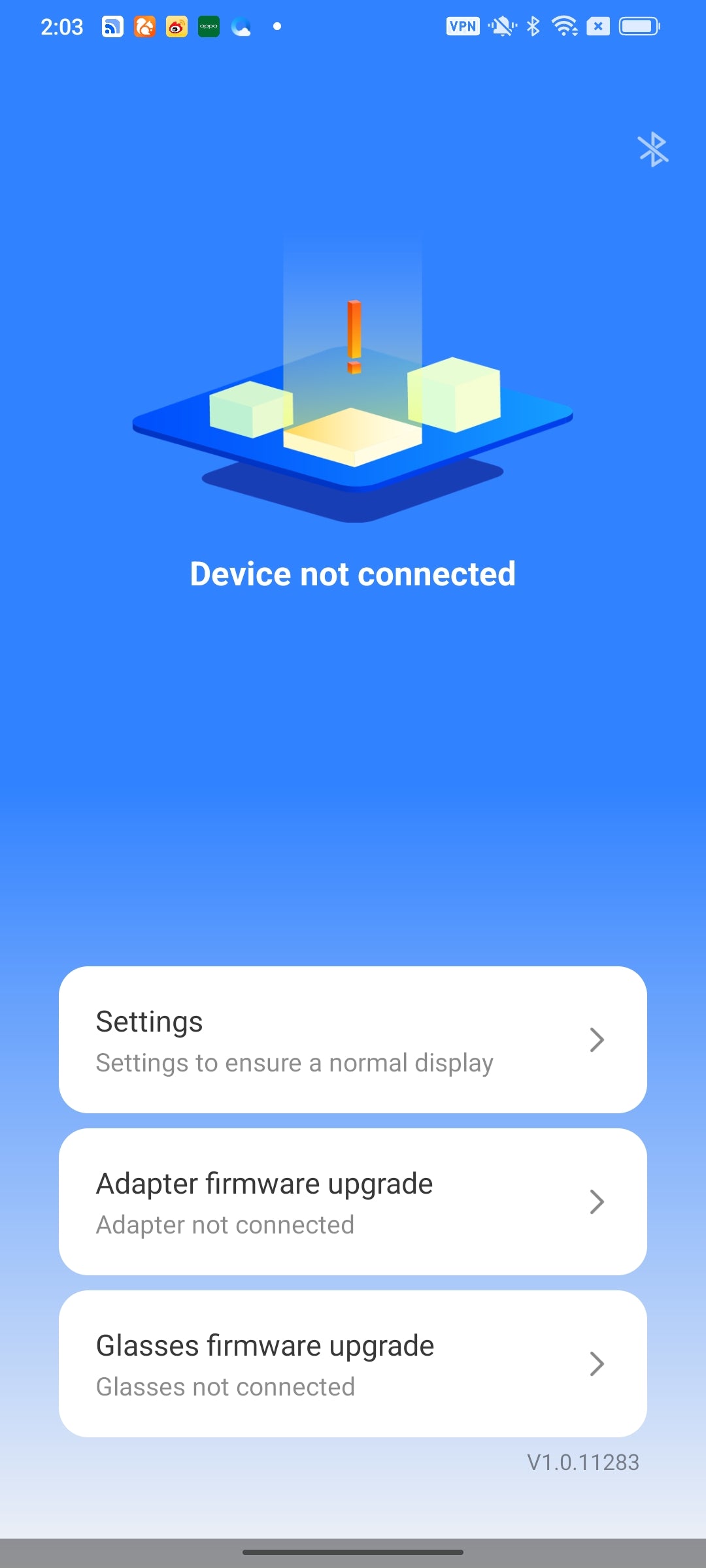
- *If the above window doesn't show up, and the interface stays at the below "Device not connected", please unplug & plug again the transfer short cable of adapter to mobile phone.
- Click ok
- Click Start Now. Now you can enjoy the screen casting.👍

- You might find firmware upgrade alert in this interface, click Adapter firmware upgrade
- New version available, click Upgrade. Do not uplug the adapter or glasses during the upgrade.
- After the upgrade, if the APP shows "Device not conneceted", please unplug & plug again the transfer short cable of adapter to mobile phone, then you can cast the screen again.👍