Adaptateur
FAQ
Avant d'utiliser l'adaptateur portable pour la première fois, veuillez le charger.
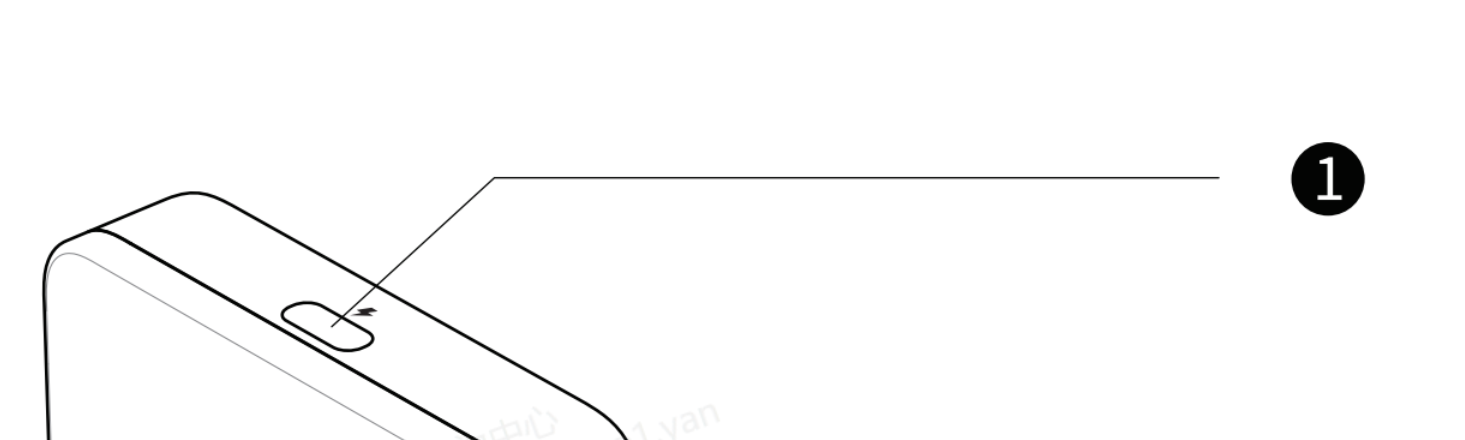
- Veuillez utiliser le long câble USB-C fourni dans la boîte, branchez l'extrémité USB-C de l'adaptateur secteur marquée d'un éclair sur le dessus, puis connectez l'autre extrémité à votre chargeur.
- - Don’t mix the type C port for Smart glasses with the one for Charging. The port for Smart Glasses is marked with a “glasses” at the bottom
-
At the very beginning of charging, the indicator light doesn’t blink due to lack of power.
- - After charging for a while, it will blink;
- - Or after charging a while, you press the thumbwheel, it will blink.

- Pour les utilisateurs Android, vous devez scanner le code QR du manuel pour télécharger et installer l' application « Mirroring » (ou la télécharger sur Google Play) ;
- For iPhone users, you can cast the screen without the APP .
- However, if you’d like to upgrade the portable adapter’s firmware, the APP is necessary(scan the QR code or search on App store).
- Take Android as an example, scan the QR code in the manual
- Click Download and install the APP
- Open the APP. It might ask for the permit to Dipaly over other apps( It might vary from one phone model to another)
- Find the Mirroring and grant the permit

Pour les utilisateurs d'iPhone
- *Suivez les étapes de connexion conformément au manuel fourni dans la boîte.
- L'iPhone affiche une fenêtre d'alerte ; cliquez sur « Faire confiance », et les lunettes connectées pourront alors diffuser l'écran de l'iPhone. 👍
For Android User
- *Complete the connection steps according to the manual in the box
- Open the Mirroring APP, below window prompts up, choose "Transfer files/Android Auto"
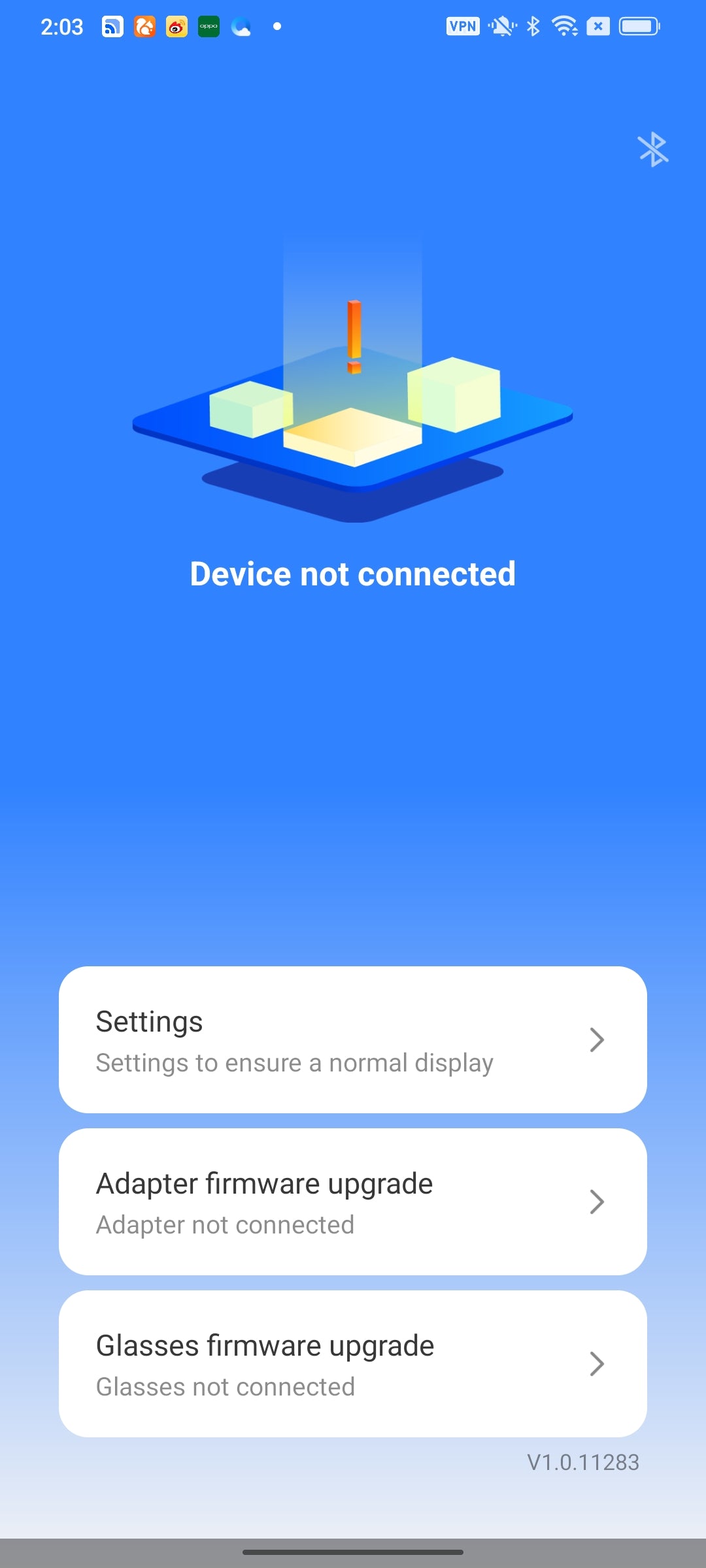
- *If the above window doesn't show up, and the interface stays at the below "Device not connected", please unplug & plug again the transfer short cable of adapter to mobile phone.
- Click ok
- Click Start Now. Now you can enjoy the screen casting.👍

- You might find firmware upgrade alert in this interface, click Adapter firmware upgrade
- New version available, click Upgrade. Do not uplug the adapter or glasses during the upgrade.
- After the upgrade, if the APP shows "Device not conneceted", please unplug & plug again the transfer short cable of adapter to mobile phone, then you can cast the screen again.👍